
New Partial Credit for Categorization Questions
How do I create a Categorization question in New Quizzes? – Instructure Community
Categorization questions require students to place answers in the correct categories while ignoring all distractors. Previously, this question type did not allow for partial credit. Starting with the April 22 release Canvas will all partial credit. Canvas categorization questions require students to drag specific items into labeled boxes, which are graded either as an “Exact Match” for full points or via “Partial Credit” based on the percentage of items placed correctly. In the partial credit model, the system calculates the score by dividing the number of items correctly sorted by the total number of items available in the question.
- Student scores are calculated based on the total number of correct decisions rather than all-or-nothing scoring.
- Correct decisions include placing items in the correct category and correctly leaving distractor items unplaced.
Change Benefit
Improved grading accuracy: Partial credit scoring allows instructors to award points for correct categorization decisions, providing a more precise measurement of student understanding.
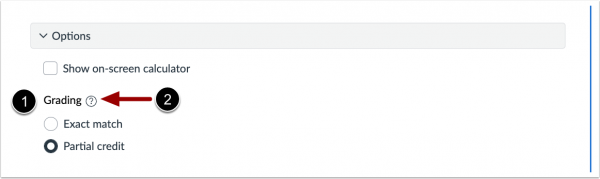
When building a Categorization question, the Grading section [1] displays in the Options drop-down menu. For descriptions of each grading option, click the Tooltip icon [2].
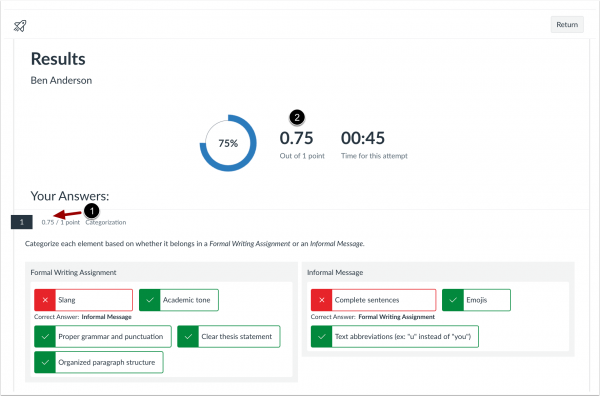
When partial credit is used, students can see the partial credit awarded for each question [1], and the total score is automatically calculated based on those partial points [2].
AI Question Authoring Assistance
IgniteAI Question Authoring allows instructors to generate quiz questions by pulling from existing Canvas course content, such as modules and files, uploading files (if you have not already added Canvas course content), or by manually entering up to 20,000 characters of text. To ensure the questions fit your context, users can refine the AI’s output by selecting a specific topic focus, learning outcomes, Bloom’s Taxonomy levels, and depth of knowledge settings. Once a question is generated, the tool provides a preview where authors can review, edit, or regenerate the item before finalizing it for their quiz. At this time, only multiple choice question types are available.
If you have questions, please submit a tech ticket to get in touch with your Technology Integration Specialist.