New Laptops Coming Soon – Back Up Your Files
Log Into Google Drive
- Open Google Chrome (or your preferred web browser).
- Navigate to drive.google.com.
- Sign in using your work email address and password.
Create a Master Backup Folder
- Click the + New button in the top-left corner.
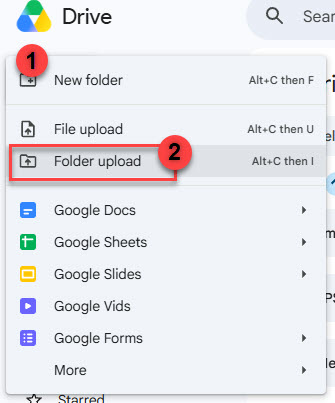
- Select New folder (1).
- Name the folder Laptop Backup – [Your Name] (e.g., Laptop Backup – Jane Doe) and click Create.
- Double-click your newly created folder to open it.
Upload Your Folders and Files
- Click the + New button in the top-left corner and select Folder upload (2).
- Navigate to your local drive, select your Desktop folder, and click Upload.
- Click + New > Folder upload again, select your Documents folder, and click Upload.
- Repeat this process for Downloads or any other folders containing work files.
- Drag-and-Drop Alternative: Open File Explorer (Windows key + E), select your folders, and drag them directly into the browser window inside your Google Drive backup folder.
Monitor Upload Progress
- An upload window will appear in the bottom-right corner displaying remaining items and progress.
- Do not close your browser or turn off your computer until green checkmarks appear next to every folder.