The Latest NotebookLM Updates for Teachers

Infographic summarizing the ideas in the blog.

If you haven’t explored Google’s NotebookLM yet, you’re missing out on one of the most powerful lesson-planning assistants available. Unlike generic AI chatbots that pull from the entire internet, NotebookLM is a “walled garden.” It only knows what you teach it. You upload your PDFs, YouTube links, Google Docs, and websites, and it becomes an instant expert on your specific curriculum.

🚨 Important Note: K-12 students do not currently have access to NotebookLM. Because students cannot log in to use the tool themselves, you should think of NotebookLM as your personal, teacher-only productivity lounge. It’s here to cut your prep time in half and help you generate incredible materials to share with your class.

Here is a look at the newest features recently rolled out.

  • Editable Slide Decks: You can now generate full presentations based on your uploaded sources and actually revise them. Just type a simple prompt to tweak the text, visuals, or layout until it’s perfect. You can even export them as PPTX files to use in Google Slides!
  • 10 New Infographic Styles: Transform dry text into engaging visual aids. You can now choose from predefined styles like Sketch Note, Bento Grid, Clay, or Scientific to perfectly match your lesson’s vibe.
  • Gemini App Integration: Your notebooks are now linked with the Gemini app. You can create new notebooks on the spot or turn your Gemini chats into NotebookLM sources for existing projects.

How K-12 Teachers Can Use It Today

Since your students can’t log in directly, your goal is to use NotebookLM as a creation engine. Here are four ways to use it this week:

The “Bus Ride” Hook (Audio Overviews)

Upload a dense reading passage or a historical document and click Audio Overview. NotebookLM will generate a realistic, 10-minute podcast where two AI hosts banter about the topic. Download the audio file and post it in Canvas. Students can listen to the “podcast” on the bus or walking the dog to prep for your class discussion!

The Ultimate Lesson Planning Hub

Upload your standards, short readings, and the transcript of your favorite educational YouTube video. Go to the chat and ask: “Based strictly on these sources, create a 3-day lesson plan including a kinesthetic activity and a formative assessment.”

 Instant Differentiated Study Guides & Flashcards

Click on the Study Guide or Flashcards buttons in the Studio panel. NotebookLM will auto-generate glossaries, key questions, and vocabulary cards complete with citations pointing right back to your text. Export these resources and print them or share them directly with your students.

Visual Aids on Demand

Struggling to explain a complex scientific process or a timeline of historical events? Use the Infographic tool in the Studio. Choose the “Instructional” or “Sketch Note” style, let the AI visualize your uploaded text, and drop the finished graphic into your next slide deck.

NotebookLM takes the heavy lifting out of synthesizing materials and creating resources. Spend less time formatting slides and study guides, and more time doing what you do best: connecting with your students!

Looking for more? Check out Matt Miller’s cheat sheet and blog post to see more examples.
Canva Features for the Classroom

Canva is a free-to-use online visual communications platform that empowers anyoneto create professional-quality designs, presentations, videos, and collaborative whiteboards using simple drag-and-drop tools and thousands of customizable templates. Canva gives free premium access to educators and students. When you go to canva.com, you should be able to sign in with Google. Make sure you and your students make sure you are signed in to the correct team

As educators, we are always looking for ways to bridge the gap between “delivering a lesson” and “sparking an experience.” Canva for Education has introduced tools that do exactly that, transforming static slides into living, breathing hubs of student creativity.

Whether you want the whole class working on a single canvas or need to assign individual brainstorms, here is how to master Live learning sessions and Whiteboards.

Collaborate with Live Learning and Whole-Class Whiteboards

Live learning sessions are designed for those “lightbulb moments” where you want everyone contributing at once without the friction of log-in issues or lost links.

  • How it works: Open any design (like a Brainstorming Whiteboard), click Share, and select Learning session.
  • Instant Access: Students join by scanning a QR code or entering a simple code at canva.com/abc.
  • Guest Access: If a student isn’t logged in, they can simply enter their name and pick an avatar to start contributing immediately.
  • Teacher Control: You can set a Timer to keep the energy high and end the session whenever you’re ready. All sessions have a maximum duration of 2 hours to ensure security.

Canva’s Whiteboard templates offer an infinite canvas perfect for group research posters, “About Me” presentations, or mind mapping.

Pro Tip: Use the Lock feature on your instructions or background elements. This allows students to drag sticky notes and draw freely without accidentally deleting your lesson scaffolds!

Explore the Canvas Integration

While whole-class collaboration is great for brainstorming, sometimes you need to assess individual progress. This is where leveraging Canvas LMS with Canva becomes a game-changer.

You can set up Canva as an External Tool within your Canvas environment to streamline your workflow:

  • Individual Copies: Create an assignment in Canvas and select the Canva whiteboard you’ve prepped. When students click the link, they automatically receive their own copy to edit.
  • One-Click Submission: Students don’t need to download files or copy links; they can submit their work directly from the Canva editor back to Canvas.
  • Seamless Grading: You can review, comment, and grade their creative designs directly within SpeedGrader, keeping all your data in one classroom hub.

Ready to Start?

By combining the high-energy “Live learning” for group work with the structured “Canvas integration” for individual assignments, you’re providing students with a professional-grade toolkit for their ideas.

Quick Checklist for your next lesson:

  1. Group work? Launch a Live learning session for instant collaboration.
  2. Individual Assessment? Use the Canvas LMS integration to assign a template.

Four Reasons to Use Edtech (still)

Decorative title graphic

In her article, Four reasons I am excited about tech in learning,” author Jenny Anderson explores the complex intersection of educational technology and its proper role in the classroom. While she acknowledges the significant risks posed by “Big Tech” incentives, she argues that with careful management, edtech (including AI) can be a tool for meaningful learning in K-12 classrooms.

The Core Challenge: Misaligned Incentives

Anderson begins by cautioning that commercial tech companies like Meta and OpenAI prioritize user engagement and market share over a child’s developmental needs.

  • Avoidance of Struggle: AI tools can allow students to bypass “uncomfortable thinking” to get quick answers, which may hinder the development of essential skills like writing and problem-solving.
  • The Literacy Mandate: Despite these risks, 66% of leaders state they would not hire someone without AI literacy, making it essential to prepare students for an AI-integrated future.

Four Reasons for Optimism in Education

1. Increased Vigilance and Awareness

Unlike the early days of social media, educators and parents are no longer “asleep at the switch”.

  • There is a growing understanding that dosage matters and that human connection is the foundation of a flourishing classroom.
  • Society is getting better at distinguishing between tech that aids learning (e.g., graphing software) and tech that merely “tranquilizes” students.
2. A Catalyst for Systemic Reform

Education systems in the U.S. face high rates of chronic absenteeism and student boredom. A quarter of kids in this country are chronically absent from school.

  • Anderson suggests the “existential threat” of AI may finally force schools to rethink outdated models.
  • This reform must protect “struggle” and “friction” as essential components of the learning process.
3. The Shift to “Precision Learning”

Anderson highlights a shift from “personalized learning”—which she notes has largely been a “bust”—to Precision Learning.

  • Diagnosis: Like precision medicine, AI can help educators diagnose specific learning gaps with high specificity.
  • Targeted Intervention: AI can recommend evidence-based actions for teachers to take, moving away from “educating to the average”.
4. Student Agency and the Desire for Rigor

Early research suggests that when students are trained on AI that uses Socratic questioning (forcing them to work harder) rather than just providing answers, they often choose the more rigorous path.

  • Mastery over Ease: Students are often willing to do “hard things” if they feel they have the support to master them.
  • Gen Z Skepticism: Interestingly, 80% of Gen Zers worry that relying on AI will make learning more difficult in the future, suggesting they have the agency to use the tool critically rather than blindly.

Anderson concludes by advocating for “marginal gains”—the economic idea of committing to small, daily improvements rather than seeking a single “silver bullet” solution. She encourages educators to lean into the opportunities of tech while rebuilding the “muscles of real life” and human connection.

Note: This summary covers the highlights, but the full article contains deeper insights into student psychology and specific project recommendations. You are encouraged to read the full piece at howtobebrave.substack.com.


Introducing Feature Updates: Canvas New Quizzes

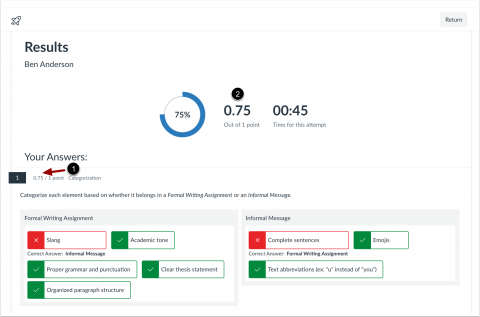
An interface titled Results for a user named Ben Anderson, showing a quiz score of 75%. The page is divided into two main sections: Summary Stats: A circular progress bar indicates the 75% score. Next to it, a black circle with the number 2 points to the score 0.75 Out of 1 point. The time for the attempt is listed as 00:45. Your Answers: This section shows a categorization task where the user had to sort elements into "Formal Writing Assignment" or "Informal Message." A black circle with the number 1 and a red arrow points to the specific score for this question: 0.75 / 1 point. Formal Writing Assignment column: Contains four items. Three are marked correct with green checkmarks (Academic tone, Proper grammar and punctuation, Clear thesis statement, Organized paragraph structure). One is marked incorrect with a red "X" (Slang), noting the correct answer was "Informal Message." Informal Message column: Contains three items. Two are marked correct with green checkmarks (Emojis, Text abbreviations). One is marked incorrect with a red "X" (Complete sentences), noting the correct answer was "Formal Writing Assignment."

New Partial Credit for Categorization Questions

How do I create a Categorization question in New Quizzes? – Instructure Community

Categorization questions require students to place answers in the correct categories while ignoring all distractors. Previously, this question type did not allow for partial credit. Starting with the April 22 release Canvas will all partial credit. Canvas categorization questions require students to drag specific items into labeled boxes, which are graded either as an “Exact Match” for full points or via “Partial Credit” based on the percentage of items placed correctly. In the partial credit model, the system calculates the score by dividing the number of items correctly sorted by the total number of items available in the question.

  • Student scores are calculated based on the total number of correct decisions rather than all-or-nothing scoring.
  • Correct decisions include placing items in the correct category and correctly leaving distractor items unplaced.

Change Benefit

Improved grading accuracy: Partial credit scoring allows instructors to award points for correct categorization decisions, providing a more precise measurement of student understanding.

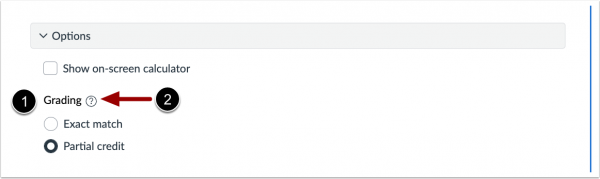
A screenshot showing an expanded "Options" menu on a white background, with all original text and labels removed. Two numbered circular labels remain, marking key areas. Circular label "1" is on the left, to the left of where the "Grading" text was. Circular label "2" is on the right, to the right of where the help icon and arrow were. A red arrow points from circle "2" towards circle "1". The overall visual style is a clean, minimal user interface panel with a vertical blue line on the right edge. The numbers 1 and 2 are clear and prominent. All context text is absent.

When building a Categorization question, the Grading section [1] displays in the Options drop-down menu. For descriptions of each grading option, click the Tooltip icon [2].

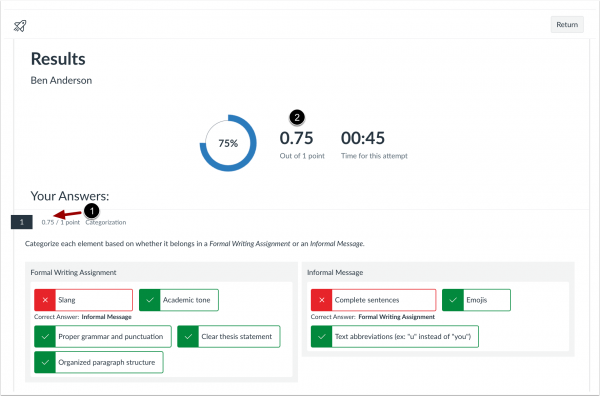
An interface titled Results for a user named Ben Anderson, showing a quiz score of 75%. The page is divided into two main sections: Summary Stats: A circular progress bar indicates the 75% score. Next to it, a black circle with the number 2 points to the score 0.75 Out of 1 point. The time for the attempt is listed as 00:45. Your Answers: This section shows a categorization task where the user had to sort elements into "Formal Writing Assignment" or "Informal Message." A black circle with the number 1 and a red arrow points to the specific score for this question: 0.75 / 1 point. Formal Writing Assignment column: Contains four items. Three are marked correct with green checkmarks (Academic tone, Proper grammar and punctuation, Clear thesis statement, Organized paragraph structure). One is marked incorrect with a red "X" (Slang), noting the correct answer was "Informal Message." Informal Message column: Contains three items. Two are marked correct with green checkmarks (Emojis, Text abbreviations). One is marked incorrect with a red "X" (Complete sentences), noting the correct answer was "Formal Writing Assignment."

When partial credit is used, students can see the partial credit awarded for each question [1], and the total score is automatically calculated based on those partial points [2].

AI Question Authoring Assistance

IgniteAI Question Authoring allows instructors to generate quiz questions by pulling from existing Canvas course content, such as modules and files, uploading files (if you have not already added Canvas course content), or by manually entering up to 20,000 characters of text. To ensure the questions fit your context, users can refine the AI’s output by selecting a specific topic focus, learning outcomes, Bloom’s Taxonomy levels, and depth of knowledge settings. Once a question is generated, the tool provides a preview where authors can review, edit, or regenerate the item before finalizing it for their quiz. At this time, only multiple choice question types are available.

If you have questions, please submit a tech ticket to get in touch with your Technology Integration Specialist.

School AI Updates: Navigation, Power-Ups, and Canvas Integration

Student using SchoolAI in Canvas

If you haven’t logged into SchoolAI lately, you’ll notice several updates. The navigation has moved to the left side. They also have a few different options for creating your own, student-facing space. You can enter in required fields or chat with Dot to talk through all the details and parameters you want to create for students. Those option are detailed on slide 4 of the deck below.

SchoolAI has also added PowerUps such as a document generator, doodleboard, flashcards, and a graphing calculator you can incorporate into the student spaces so they can demonstrate their knowledge beyond text. You will be able to monitor their creations in Mission Control.

Find more details and ideas for use below.

Copy of April Classroom Collaborative Slides Template by Kaelyn Bullock

Bring the Magic of SchoolAI Directly into Canvas

As educators, we’re always looking for ways to streamline our “digital stack.” Every extra tab a student has to open is a potential distraction, and every extra login is a technical hurdle.

That’s why the ability to embed SchoolAI Spaces directly into your Canvas courses is such a game-changer. Instead of sending students to an external site with a room code, you can bring the AI experience to the place they already spend their day.

Why Embed SchoolAI in Canvas?

  1. Seamless Navigation: Reduce “tab fatigue.” Students engage with the AI tutor, historical figure, or writing coach without ever leaving the Canvas environment.
  2. Instant Teacher Insights: You can view Mission Control directly within the Canvas frame. Monitor student progress, see real-time transcripts, and pivot your instruction without switching tabs.
  3. Automatic Authentication: This is the big one. Students don’t need to manually enter their names. SchoolAI automatically pulls their names from their Canvas profiles, ensuring your data is accurate and students get to work faster.

Directions

18 STEPS

1. Once logged in to SchoolAI, click your account in the bottom left and click Integrations

2. Click Connected Courses, select the course(s) you want to connect. (Sorry, it currently shows courses for ALL of the terms).

3. Select the course(s) you need.

These steps may need to be repeated if you are at multiple buildings or need to add more courses, otherwise you should not need to do this again.

4. Click Save changes

These steps may need to be repeated if you are at multiple buildings or need to add more courses, otherwise you should not need to do this again.

5. Click Discover (or Organize or Create a Space) to locate a Space you want to assign.

6. Click on a Space.

7. Click Preview & Launch (or it may just say Launch, then check these steps and return to step 16–or continue viewing because the steps are quite similar).

8. Click Send through an LMS

9. Scroll and click Select an LMS

10. Click Canvas

11. Click Canvas class*

12. Click on the appropriate class

13. Click Module* to select which module it will be added to.

14. Click Canvas instructions* to provide the instructions that will be displayed at the top of the Canvas assignment.

15. Click Launch

16. Open pccsk12.instructure and scroll and click Edit Assignment Settings to set your assignment preferences.

17. Scroll down and click Save or Save & Publish

18. That’s it. You’re done.

Here’s an interactive tutorial

https://www.iorad.com/player/2707049/App-Schoolai—How-to-Connect-a-Space-to-Canvas

Next step

If you aren’t using a newer, enhanced space, a few screens may look a little different. You can see those here.

⚠️ Pro-Tip: Check Your Gradebook Settings

Because SchoolAI is added as an External Tool Assignment, Canvas automatically creates a column for it in your Gradebook.

If you are using the Space as a formative practice tool or a “Safe Space” for exploration and don’t want it to impact a student’s grade, make sure to:

  • Change the Points to 0.
  • Check the box that says “Do not count this assignment towards the final grade.”

This allows students to explore and learn with the AI without the pressure of a score, while still giving you full visibility into their progress through Mission Control.