- Gmail
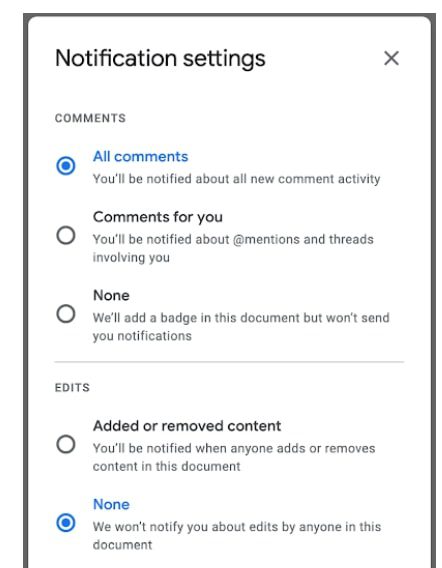
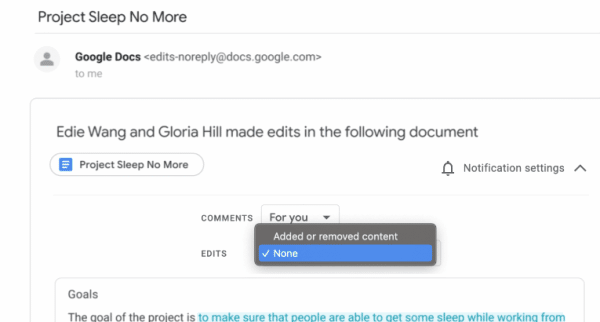
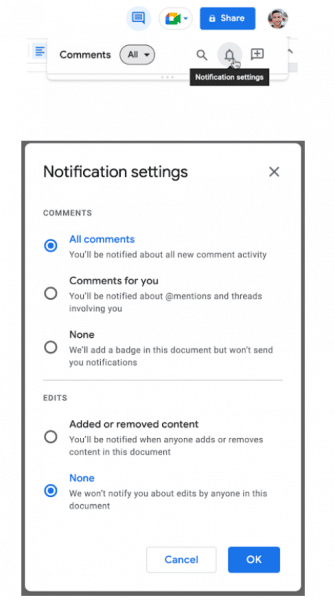
- In Docs via the Notification settings drop down (bell icon) or Tools > Notification settings.
Why you’d use it


THE WHAT
P-CCS staff already use Two-Factor Authentication when logging into MISTAR and Wayne Resa’s eEmployee portal SMART (where P-CCS staff access payroll information). Two factor authentication is an added layer of security to an online account. It can prevent 98% of hackers from accessing your account information. Two factor authentication is a system which after you login with your username and password you receive a code to verify it really is you trying to enter your account. Upon entering that code, you will then be able to access your account. And by October 1, 2022, all Faculty/Staff P-CCS Google accounts will be required to use two-factor authentication.
THE WHY
2-factor authentication drastically reduces the chances of having the personal information in your Google account stolen by someone else. If interested, this video shows more information about how Two-Factor Authentication keeps your account more secure. And though an extra step to log in may feel frustrating, it’s less frustrating than dealing with the repercussions of a compromised account. Additionally, school districts purchase cyber insurance which requires a regular review of security-related best practices/continuous improvement, and requiring an additional authentication method for account access is the next big push for districts to be compliant with cybersecurity risks/best practice.
THE WHEN
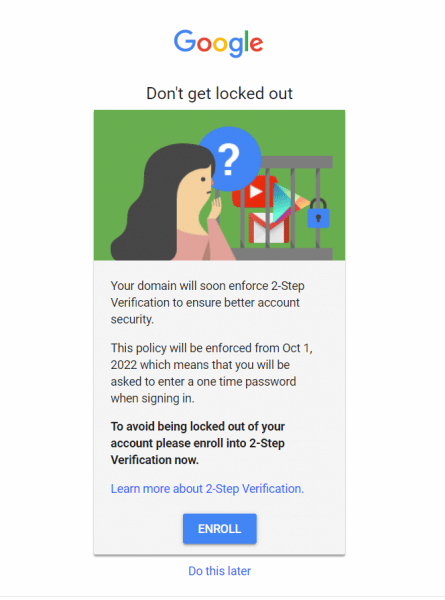
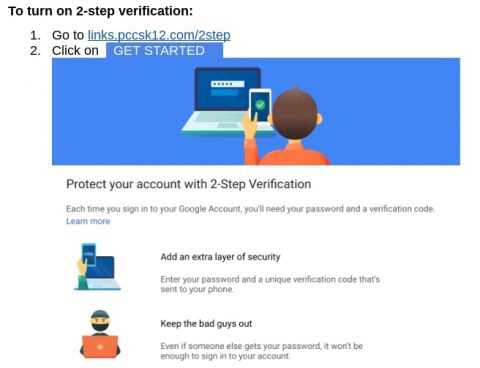
Beginning Monday August 15 All PCCS staff will be prompted to turn on 2-factor authentication. When you log in, the image above will prompt you to enroll. Staff must turn on two-factor authentication by September 30, 2022.
It is important to note the following
This prior blog post also offers some news of this upcoming requirement.
Questions? Need help? Submit a help desk ticket!
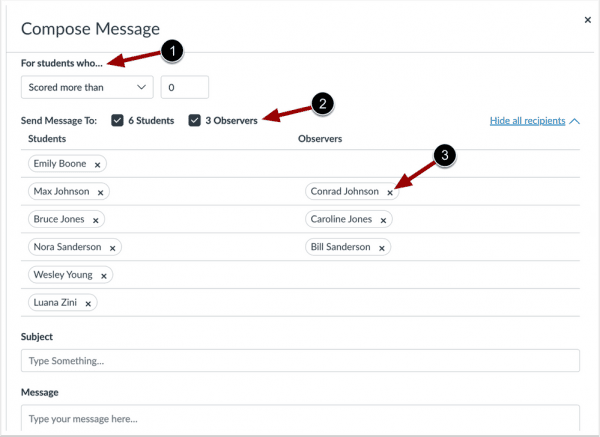
Canvas is always striving to make improvements for users. Just this week they are offering teachers the option to “Message OBSERVERS of Students Who…” Canvas has always had the option to message students who had missing work or scored more/less than, but now teachers will be able to have greater control of the students and observers that get the message.

Wondering what other cool updates you may have missed from Canvas in 2022? Here’s a quick look:
By early next fall our district will begin to require staff users to use 2-Step verification in order to access their district Google accounts. A bit of background on what that is and an invitation to enable it prior to enforcement is the gist of this blog post.
[Note, the “2-Step verification” process may be known by other names like, “two-factor authentication” (2FA), or “multi-factor authentication (MFA)”.]
2-Step verification adds a second layer of protection during the login process. Currently, your Google login is tied to “something you know” (your password). 2-Step verification adds a second layer of “something you have”, i.e., a mobile device, a phone number where you can be reached, a physical security key.
Times are changing and hackers are finding new and creative ways to acquire user passwords: cyber hackers are buying lists of usernames and passwords on the dark web, they are using social engineering and email phishing tactics to steal passwords, they are also using something called “dictionary attacks” as a brute force method to guess weak passwords. Adding a second form of verification dramatically decreases the likelihood of your password, and consequently your account, being compromised. Additionally, school districts purchase cyber insurance which requires a regular review of security-related best practices/continuous improvement, and requiring an additional authentication method for account access is the next big push for districts to be compliant with cybersecurity risks/best practice.
Once you authenticate and complete the 2-step verification process and make sure to “remember this device” (their verbiage is Don’t ask again on this computer), Google will not require 2-step verification every time you log in. From that point on, Google will not prompt you to perform 2-Step verification on that device unless you clear your browser’s cache, change your password, it’s been around 30 days since your last verification and/or if Google suspects that your account has been breached.
For guidance on how to enable 2-Step verification for your district account, visit http://links.pccsk12.com
See also https://support.google.com/accounts/answer/185839 AND https://safety.google/authentication/
————–
To make more secure other accounts you have (banking, Apple, Amazon, any other online retailers, especially ones with your credit card info, personal email, etc.), consider also enabling 2-Step verification if it isn’t already in place. Basically any account that would be a real bummer to have someone else you don’t sanction gain access to.
————–
Expect more details in future blog posts around this topic.
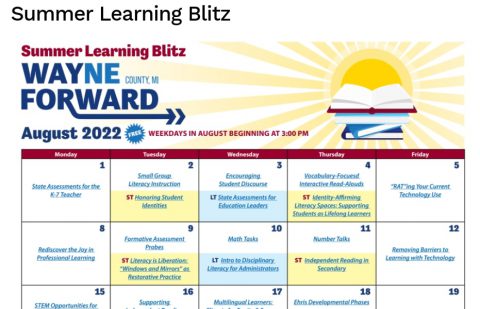
[vc_row][vc_column][vc_column_text css=”.vc_custom_1654132386571{margin-bottom: 0px !important;}”]Wayne RESA is again offering one hour online sessions Mondays through Fridays from 3 -4 pm throughout August. They are FREE and cover a variety of worthwhile topics. Check out the calendar below and register for whatever you’d like. They will record them and email a link to the recording to those that register, whether they attend ‘live’ or not.
[/vc_column_text][/vc_column][/vc_row]
June REMC Courses are a great way to kick-off your summer learning
June courses are a great way to build new skills and get a jump on your summer learning. Interested in a new technology tool? Need to earn SCECHs? Look no further than a June REMC Course!
Registration deadline is Friday, June 3rd, each course begins on Monday, June 6th. Through the support of REMC SAVE’s vendor partners, all courses are FREE and there are no SCECH fees. Don’t miss out on the opportunity to learn, connect, collaborate and grow from the convenience of your home.
Check out June 2022 courses here:
|
If you are retiring from teaching, changing roles, or changing grades, you might be wondering how you can best share some of your teaching materials with your principal or colleagues from your department or team. This post will offer some suggestions. If you are retiring or leaving the district, a direct email will be sent to you regarding how to return district technology at the end of the school year. Please be on the look out for that email if it applies to you.
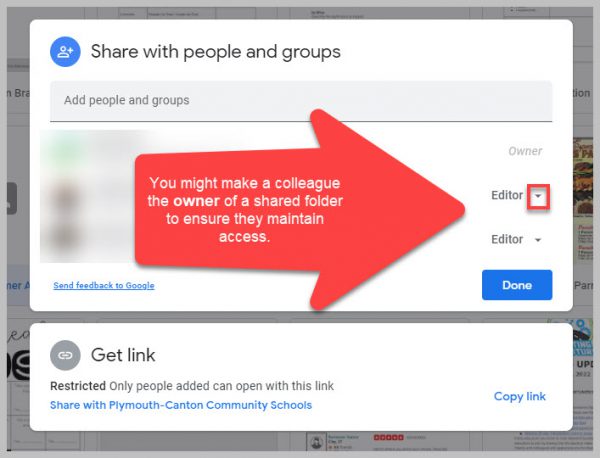
You will want to make sure that a colleague you want to share files with is made the owner of a document or folder. You can change this if you are the current owner.

If you are not leaving the district and want your files shared, but not altered, you might download a folder and then re-upload it to your Drive naming it “3rd Grade Originals.” This will allow you to maintain a copy of your versions of the documents.
Please be mindful about checking folders before you share them to ensure confidential, student information is not shared.
You are able to export your Canvas course as an IMSCC ZIP file that can be uploaded into many Learning Management Systems (if you are leaving the district) or shared via a thumb drive.
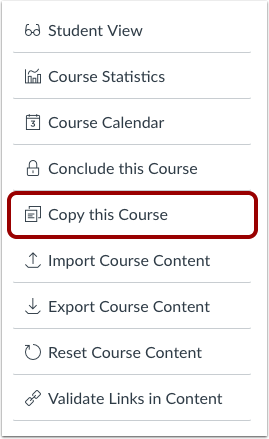
If you want to share your course with another teacher, you can make a copy of your course (found in Settings). When you make the copy you can select the specific content you are willing to share, give it a name (i.e. Bullock Shared US History) and then add your colleague(s) as a teacher in the course. Finally, to make your course more widely available to others at P-CCS you can export your course to Canvas Commons, when you export you can choose to make it viewable to the public or only to P-CCS teachers.
Please submit a tech ticket if you have additional questions about sharing content.

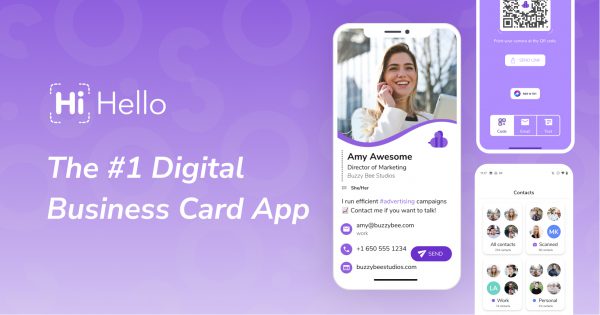
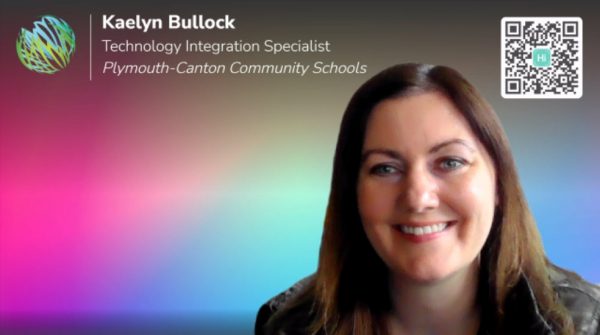
We are excited to share the tool, HiHello. Spend about 5 minutes getting signed up and entering in your information and you get a professional looking email signature and Zoom background. The Zoom backgrounds (pictured below) are especially helpful because they can display your name, position, and pronouns which is helpful if you are in a lot of meetings with families and community members. You can also upload the P-CCS logo or your school logo. Get the mobile app and have access to a digital business cards that can easily be shared. Check it out!

The tech department would like to suggest the following maintenance steps to ensure the best performance from your new laptop.
Making sure you perform periodic restarts and logging into your laptop while on the district network does several important things to improve performance including clearing the laptop’s Random Access Memory (RAM) which can otherwise over time bog down its system resources and allowing important and useful district updates to to run at start up (as one example, a needed component to run the updated Canvas Studio Screen Recorder requires a one time laptop restart and new log in while in district so a log in script that is associated with user accounts can install it).
We appreciate your help to ensure the best possible performance of your laptop. Please submit a tech ticket if you have any questions.
As of now, all instructional staff working with K-12 students should have been issued a new Dell Latitude 3520 laptop, with the exception of a few make-ups that have yet to be deployed. We appreciate everyone’s patience and want to thank staff for being cooperative, given our expedited time frame to issue all devices in the district. Even we are adjusting to the new technology and all the changes involved with the new Dell laptops. Besides the differences in the look and feel of staff laptops, one of the biggest changes is the addition of the Microsoft Company Portal.

What is the Company Portal?
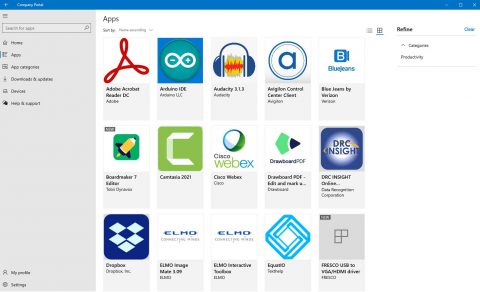
The Company Portal is part of a new data management system that allows PCCS staff to securely download and install district-vetted programs and updates. The Company Portal can be thought of as an App Store for PCCS, including all apps and utilities used in-district. We surveyed the list of programs that were being used by teachers and staff members in the district and included the vast majority of these in the current app list in the Company Portal. The list of available apps in the portal is ever-growing,
You may have noticed that installing programs outside of the Company Portal prompts for an administrator username and password. This is completely to be expected and is designed to protect your laptop and files safe from malware or malicious programs. Safeguarding devices connected to our network protects our infrastructure and makes our districts less susceptible to cyber attacks. It’s also something our insurance company has begun to insist on for us to remain with coverage.
How do I install the Company Portal on my computer?
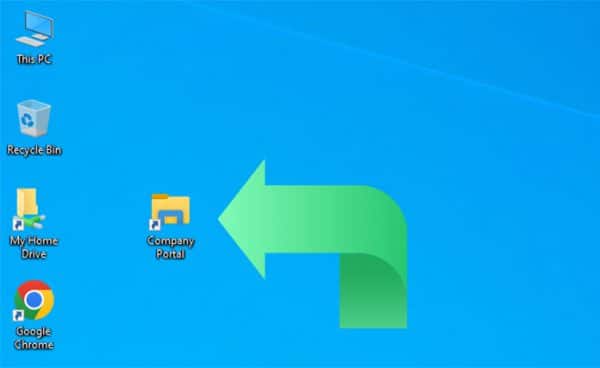
The Company Portal should install on your laptop after about an hour of initial use. Once you log into your laptop for the first time, it gets pushed out to your device and usually takes about that long to appear. Once installed, and following another restart, a shortcut to the Company Portal should later appear on your desktop. If you do not see an icon for Company Portal, it’s possible that it hasn’t been pushed to your device yet. A restart often helps, but it is also possible that you can find the Company Portal by searching for it.
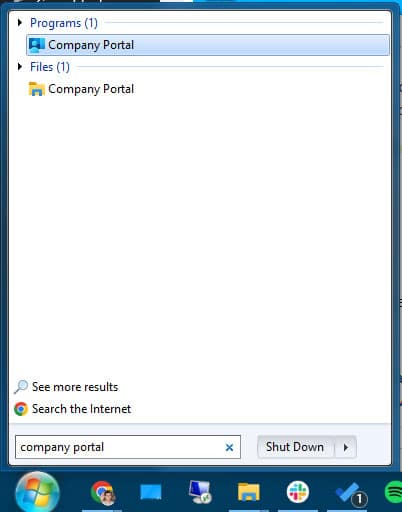
If you click the Start button and begin to search for “company portal”, you should see the app populate in the search results. Once the program opens, feel free to right-click the icon at the bottom of the screen and select Pin to taskbar so it is readily accessible when you want to open the Company Portal in the future.
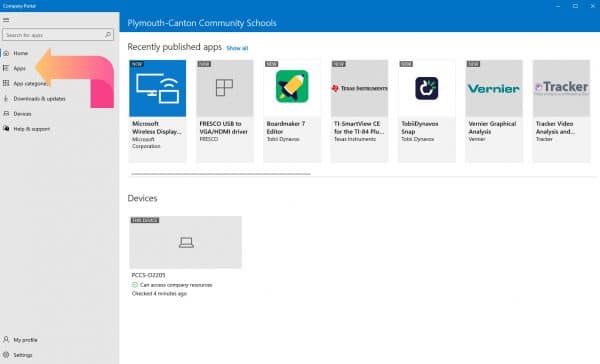
Once the Company Portal opens, click Apps to see a full list of all available apps in the Company Portal.
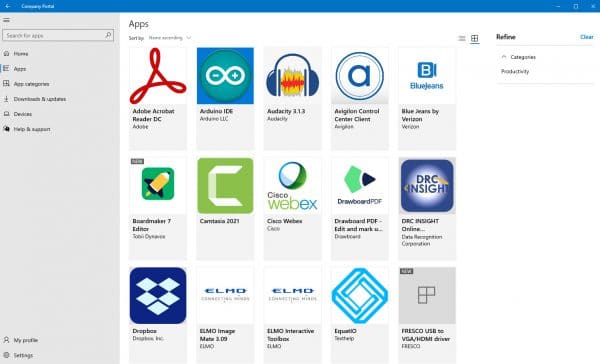
How do I install the apps I need?
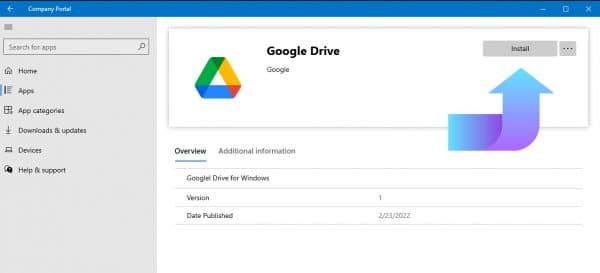
Click the app you’d like to install and click Install. Please do not disconnect from the Internet or close the lid during the installation process. Some apps are larger than others and require more time to download and properly install.
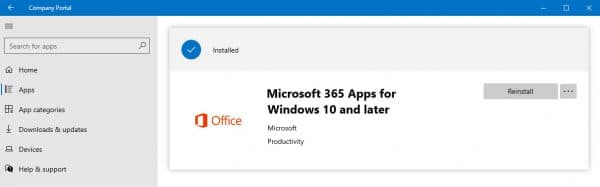
You will know an app is completely installed when you see the blue checkmark and Installed at the top of the screen.
Should I install everything in the Company Portal?
There is no need to install all available apps in the Company Portal. If you have a specific software need, there is likely an app added to the library to meet that need. See the table below for some examples.
| To use: | Install these apps: |
|---|---|
| Smart Notebook software | SMART Education Software
SMART Product Drivers |
| Microsoft Office | Microsoft 365 Apps for Windows 10 |
Please note, if it is a paid app or subscription service (and some of them are), and you don’t have the license for it, you won’t be able to run it even if you do install it.
There is software I would like to use and it’s not available in the Company Portal. How can I install it?
If there is software you’d like to use and it provides educational value, you can request to have it added into the Company Portal. Please click here to submit a tech request and choose Computer Software Request. We will gladly evaluate the request and add it to the Company Portal if it is something Teaching and Learning and/or the Technology Department deem educationally valuable for staff members.
I still don’t see the Company Portal on my laptop. What do I do?
If you don’t see the Company Portal, even after searching for it, it may be due to a setting tied to your logon profile. Please submit a tech request and let us know so we can look into it!
Have any questions?
If you have any questions about how the Company Portal works or need help setting up any apps, please submit a tech request and a member of our department would be happy to help you.