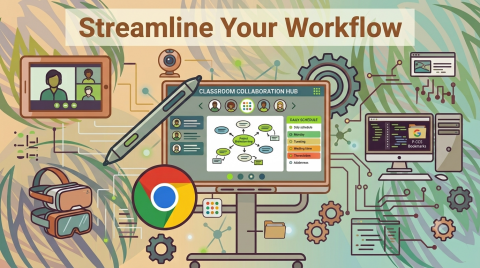
As your new Educational Technology Manager, I am thrilled to dive in and support our incredible district team. Whether you are stepping into a P-CCS building for day one or year twenty, technology should streamline your workflow, not complicate it. While our P-CCS Technology Essentials guide is often shared during new hire onboarding, it serves as a valuable annual cheat sheet for every staff member to keep systems running smoothly.
Chrome Navigation Reminders
- Make sure you are signed into the Chrome browser with your P-CCS Google ID
-
- On your computer, open Chrome.
- At the top right, select Profile
Add Chrome profile
.
- If you choose to sign in to Chrome with your Google Account, your profile name will automatically be your Account name.
- Choose a name, photo, and color scheme.

If you choose to sign in to Chrome with your Google Account in this new profile, you’ll be able to save your bookmarks, passwords, and other settings in your account and access them on your other devices where you’re signed in.
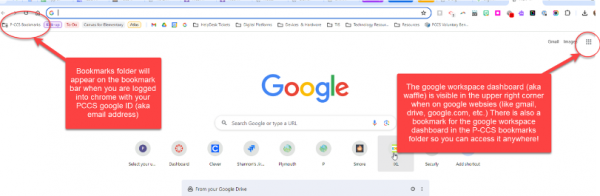
- P-CCS Bookmarks appear on the Bookmark Bar when logged into Chrome with your P-CCS Google ID.
- The Google Waffle is visible when on google websites (gmail, drive, docs, ect.). It can also be found in the P-CCS Bookmarks folder under Google Workspace.
SMARTboard Updates & Tips
Check out the Smart Learning Academy to level up your knowledge of your SMARTboard and Lumio. The Academy is filled with short self-paced courses that walk you through using various tools and let you interact with a SMARTboard simulation from anywhere.
Tips
- Use the Lock Canvas button when using the Whiteboard
 . This makes it so the background won’t automatically get moved when content and annotations are added.
 - Want to write with 2 different colors? Enable finger inking while using the Whiteboard. Select 1 color for the pen and 1 for finger inking.

Technology Support
How do I get help?
- Submit a work order to get support with malfunctioning or broken technology and get questions answered on how to use district resources.
- Master Library is the work order system for technology, facilities, & operations. Access it via the P-CCS bookmarks folder. Sign in with your District Google ID.