Missing Apps? Your P-CCS Google “Waffle” Apps Aren’t Gone

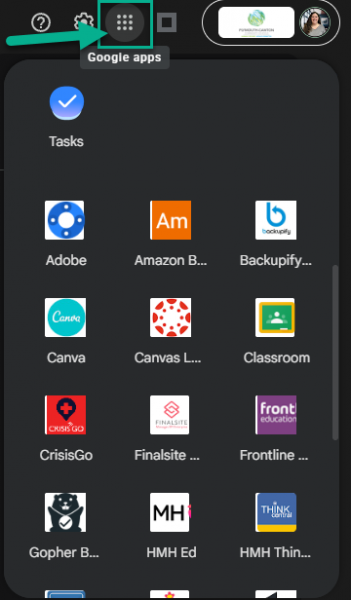
Google is often updating and changing their platform and many people have noticed that the “waffle” on www.google.com or a new tab no longer displays your P-CCS apps. Rest assured, the apps are not gone, they just have to be accessed in a slightly different way.

Here are 2 easy ways to access the P-CCS “waffle” apps:

  1.  P-CCS Bookmarks: In the top-left of your Chrome browser, click the P-CCS Bookmarks folder, and select Google Workspace Dashboard.
  2. Inside an active Google App: Open Gmail, Google Drive, or Google Calendar. The waffle icon in the upper-right corner inside these apps will contain all of our standard P-CCS “waffle” apps.

Supercharge Your Lesson With Edpuzzle!

We all know that video is a powerful ways to engage students. Many of you have used video in your classroom, but are perhaps wondering how can you ensure students are actually watching, check for understanding in the moment, and stop them from just hitting “play” and tuning out?

If that sounds familiar, I’m excited to re-introduce you to Edpuzzle! It’s a tool designed from the ground up to turn passive video viewing into an active, engaging, and accountable learning experience.

What is Edpuzzle?

It’s a platform that lets you take almost any video (from YouTube, Khan Academy, one you’ve made, or even a screencast you record right in Edpuzzle) and embed your own questions, notes, and voice-overs directly into it.

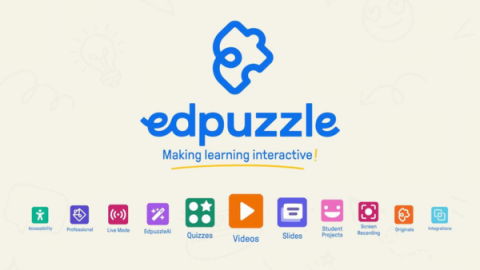
But it’s not just for videos anymore! You can now build lessons with interactive Slides (by uploading your Google Slides or PowerPoints), create stand-alone, gamified Quizzes to check understanding, or create a Doc that allows you to chunk information and ask different types of questions, all on the same platform. Check out the What’s new at Edpuzzle Video for more details!

Did you know? Edpuzzle has an official partnership with YouTube to provide ad-free videos when using their platform.

Why Try Edpuzzle?

This is where Edpuzzle really shines as a Canvas Studio alternative. It’s not just about showing a video; it’s about what your students do with it.

  • 1. Turns Passive Viewing into Active Learning: Embedded questions make students stop and think, which boosts retention.
    • Student Outcome: Deeper engagement and accountability. Students must participate, not just watch.
  • 2. Get Instant, Actionable Data: Simple analytics show who completed the lesson, their scores, and which questions were toughest.
    • Student Outcome: This formative data shows exactly what to re-teach or which students need support.
  • 3. Perfect Your Flipped Classroom: Deliver instruction via homework with built-in checks for understanding, so you know who is ready for the next step.
    • Student Outcome: Frees up class time for hands-on activities, projects, and small-group support.
  • 4. Access a Massive Content Library: Save time by adapting lessons or using the high-quality, standards-aligned Edpuzzle Originals library.
    • Student Outcome: Students get vetted, engaging, pre-built content.

How to Get Started

Check out our Edpuzzle guide for how access your premium account.
Connecting Families to your LMS

One of the benefits to utilizing a Learning Management System (LMS) like Canvas or Seesaw is the ability for families to become observers and be involved in the digital aspect of the classroom.

Canvas Observer Accounts
Canvas Observer Icon

Canvas Observer Accounts are created from the main contacts listed in MiStar. In order for observers to access the account and follow their student(s), they need to change their password.

  1. Open a browser and navigate to https://pccsk12.instructure.com (opens in new tab).
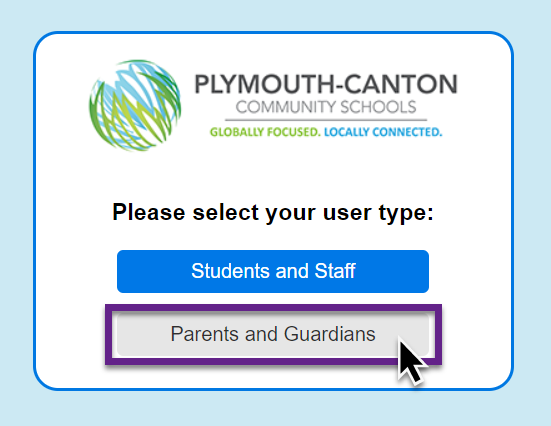
    • Click Parents and Guardians
    Canvas portal page showing the Parents and Guardians option

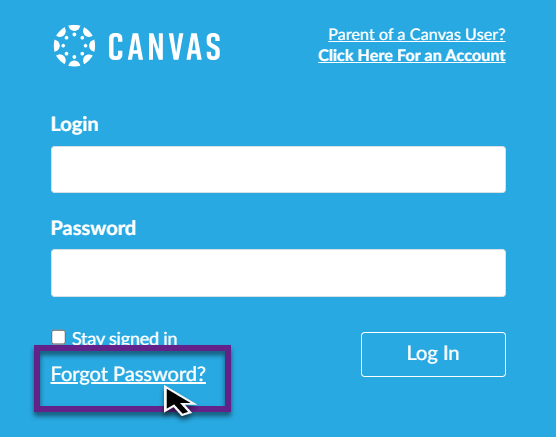
  1. Click Forgot Password.
    • Do this even if you haven’t already set up an account
    Canvas login screen highlighting the Forgot Password link

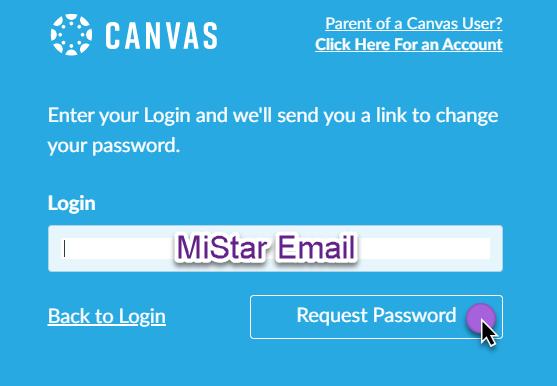
  1. Enter the email address that you use for MiStar Parent Connection.

  1. Click Request Password.
    Request Password button on the Canvas password recovery screen

  1. This will send a password reset link to your email (check your spam). Follow the instructions in that email to change your password and sign in.

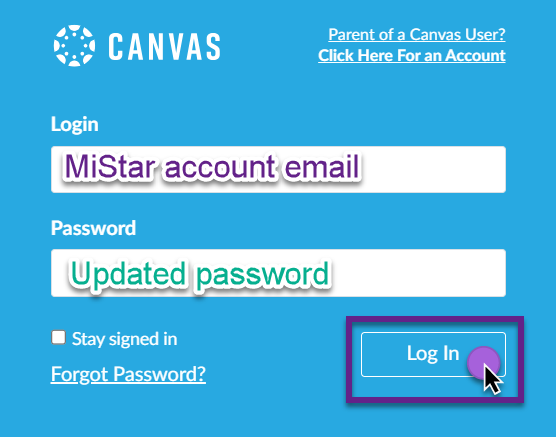
  1. Go back to https://pccsk12.instructure.com (opens in new tab), enter your email address in the Login box and enter your updated password to sign in.
    Canvas sign-in screen showing email and password input fields

Canvas Observer Account Setup Guide (Google Doc, opens in new tab)

Seesaw Family Accounts
Seesaw Logo

Families connect to their child’s Seesaw journal to participate in their student’s learning, see student work, and celebrate progress. They can connect to their child’s journal on the web (app.seesaw.me, opens in new tab) or by downloading the Seesaw App, available on iOS and Android. When families connect to their child’s journal, they can only see their individual child’s work, or group projects that their child is tagged in.

  1. Tap on the wrench to open Class Settings.
  2. Enable family access (if not already turned on) by sliding the toggle ON. (Family access is automatically set to OFF).
    Class Settings menu showing Family Access toggle button
  3. Go into the class you’d like to connect families to and tap + Families.
    Seesaw class interface highlighting the plus Families button

Teachers can generate an Invite Link to connect families to their students’ Seesaw journals.

  1. Tap on the wrench to open Class Settings.
  2. Select Invite Families. Tap Share an Invite Link.
    Invite Families option with Share an Invite Link button
  3. Copy and paste the URL that generates into your communication with family members.
    Generated invite URL link popup window
  4. This invite link will work for every student in the Seesaw Class. When pasting the link into their browser window, all the family member has to do is choose their student’s name from the list to connect to the journal.
  5. Once the family member chooses which student they’re trying to connect to and creates a Seesaw account, the teacher will receive a notification letting them know that they have a family invite pending.

The Ticketing Advantage

Our technology team is working hard behind the scenes to keep everything running smoothly. With a high volume of requests coming in right now, our top priority remains getting your classroom tech back on track as quickly and efficiently as possible.

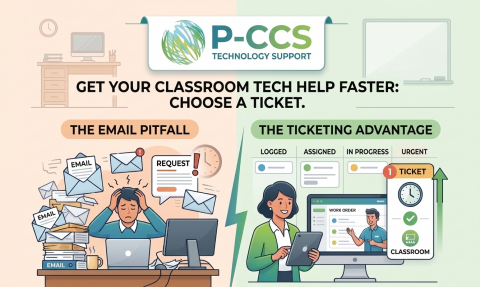
To help us serve you faster, please submit all tech issues through our ticketing system instead of sending direct emails.

When requests are sent via email, they run the risk of getting buried in a crowded inbox. Submitting a ticket ensures your request is logged instantly, assigned to the right team member, and prioritized—especially for urgent classroom needs. 

Submitting a request takes just a minute. Here is how to do it: 

  • Access the Portal: Open your browser, click on the P-CCS Bookmarks folder, and select Work Order Request. Sign in using Google SSO. 
  • Describe the Issue: Provide a brief summary of what is going wrong or what assistance you need.
  • Attach Visuals: Whenever possible, include a screenshot or photo of any error messages. Seeing the exact error helps us diagnose and fix the problem much faster.

Using the ticketing system guarantees nothing slips through the cracks and keeps our entire support process transparent and efficient. Thank you so much for your patience, partnership, and support as we work together to keep our school tech running seamlessly!