Keeping YouTube Safer for our students

YouTube reminder

REMINDER: Due to the nature of YouTube, and the easy availability of inappropriate content, the Tech Department has enabled severe restrictions on YouTube for elementary students and moderate restrictions for middle school and high school students. However, it’s easy for staff to approve content on the fly when they need to. Please note the following steps to approve content, but please remember to approve only the content that you would want students to access.

Visit YouTube. https://www.youtube.com

  1. Click sign in on the top right if you are not already signed into a YouTube account.
  2. Make sure that you are signed into your district YouTube account. Click on the icon in the top right to verify. Should say managed by pccsk12.com (see pic below)
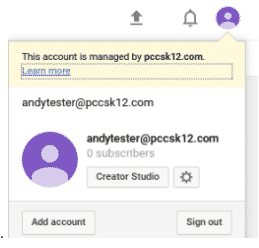
YouTube Sign in box


3. When you go to any YouTube video you will find a blue bar stating the status of the video below it. This video can be approved for our organization — when someone is signed in to YouTube — so at this point, not applicable to elementary as is. See pic below. 
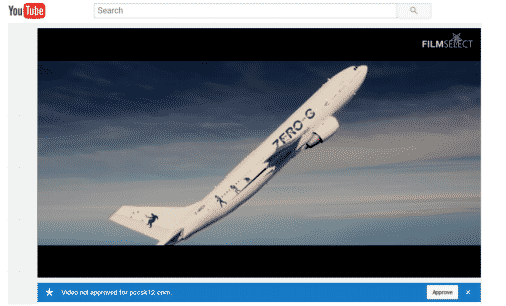
approval bar

4. If the video was already approved you will see the remove button. Anyone can click this to also remove the video from approval.

5. Some videos are allowed by YouTube automatically. It will say watchable.

6. You can also approve a whole channel. This will allow you to approve school channels or curriculum sites, for when and if we opt for restricted mode, but permit sign in where we can then allow all white-listed videos to be accessible.

  1. Important note: By approving or removing videos from YouTube, you are a affecting the entire district, and therefore it is important to approve videos ONLY if they are appropriate for K-12.
  2.  All creators are now required to tell if their content is made for kids in order to comply with the Children‘s Online Privacy Protection Act (COPPA) and/or other applicable laws.   As part of a settlement with the US Federal Trade Commission (FTC) and NY Attorney General, YouTube is now requiring YouTube creators to set future and existing videos as made for kids OR not. Even creators who don’t make content for kids need to set their audience.  See this posting for more information https://support.google.com/youtube/answer/9527654
Coming Soon: Enhanced Canvas Rubrics

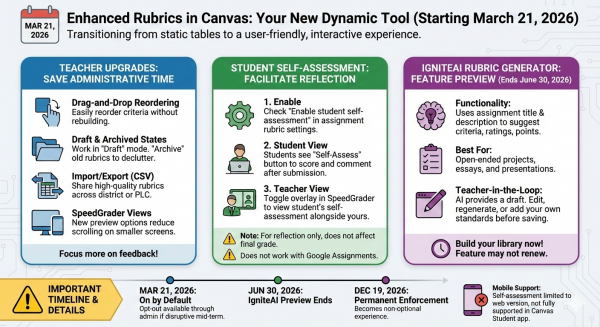
Visual infographic of blog contents

Starting March 21, 2026, P-CCS will transition to the Enhanced Rubrics experience in Canvas. This update is designed to move rubrics from a “static table” to a more dynamic, user-friendly tool for both you and your students.


Key Upgrades for Teachers

The new interface focuses on saving you administrative time so you can focus on feedback:

  • Drag-and-Drop Reordering: You can finally click and drag to reorder criteria. No more deleting and rebuilding a rubric just to move one row.
  • Draft & Archived States: Work on a rubric in “Draft” mode until it’s ready. You can also “Archive” old rubrics to declutter your list without losing past grading data.
  • Import/Export (CSV): You can now import existing rubrics and export you Canvas rubrics. (see video below)
  • SpeedGrader Views: New horizontal and vertical preview options reduce the amount of scrolling needed when grading on smaller laptop screens.

Student Self-Assessment

With both Enhanced Rubrics and Assignment Enhancements active, you can now offer student self-reflection directly in Canvas:

  • How to Enable: In the rubric settings for a specific assignment, check the “Enable student self-assessment” box.
  • Student View: Once they submit their work, students will see a “Self-Assess” button. They can score themselves and leave comments on each criterion.
  • Teacher View: In SpeedGrader, you can toggle an overlay to see the student’s self-assessment right alongside your own.
    Note: Student self-assessments are for reflection and do not automatically affect the final grade. They also do not currently work for Google Assignments.

How do I submit a self-assessment to an assignment using Enhanced Rubrics as a student? – Instructure Community

IgniteAI Rubric Generator

This tool is available as a “feature preview” through June 30, 2026. Since it may not be renewed for the next school year, now is the time to use it to build up your personal rubric library.

  • Functionality: It uses your assignment’s title and description to suggest criteria, ratings, and point values.
  • Best For: Open-ended projects, essays, and presentations.
  • Teacher-in-the-Loop: The AI only provides a draft. You can (and should) edit, regenerate specific criteria, or add your own standards/outcomes before saving.

How do I use IgniteAI Generator for Rubrics in an assignment? – Instructure Community

⚠️ A Few Important Details

  • Mobile Support: Self-assessment is currently limited to the web version of Canvas; it is not yet fully supported in the Canvas Student app.
  • March 21 Status: The enhanced rubrics feature will be “On by Default” starting this date. You won’t need to do anything to see the new interface. If it is too disruptive, submit a ticket and we can walk you through how to turn it off (until December).
  • Final Enforcement: This will become the permanent, non-optional experience on December 19, 2026.