WayneRESA’s January EdTech Updates newsletter

EdTech Updates

Wayne RESA’s January EdTech Updates brings you the latest news, tech tips, and professional learning opportunities in educational technology that they are aware of or are coordinating. Some staff may want to check out their offerings.

Two are shown below:

Happy New Year! Take the 20 D-AI-Y Challenge and prompt your way into 2026. Explore AI daily and discover new ways to think, create, and work.

Calendar • Interactive Site • PDF Version

————–

Fully funded Data Science + AI learning opportunity for educators! CSforMichigan, in partnership with Bootstrap, is sharing a chance to attend Data Science 4 Everyone, a weeklong immersive experience focused on Data Science and AI. Join educators June 22–26, 2026 at the University of New Mexico in Albuquerque – with airfare and lodging fully covered. Participants will follow a full-week curriculum from partners like Bootstrap, CourseKata, Youcubed, or Dataspire.


🗓 Apply by January 15 (rolling acceptances begin February 9). Teams from the same school are encouraged, and full attendance is required.

MISTAR-Q Training: MISTAR-Q Academy for Teachers

Q Academy

Registration is open for
MISTAR-Q ACADEMY for Teachers
Spring Session – Jan 19 to Apr 13, 2026

Teachers are invited to participate in MISTAR-Q Academy for Teachers, a FREE training to hone MISTAR skills.

Working online at your own pace, you will complete activities designed to increase your skills and knowledge of teacher apps including Class Attendance, Grade Book, Seating Chart, reports, and more. This course is especially beneficial for teachers new to MISTAR-Q. 

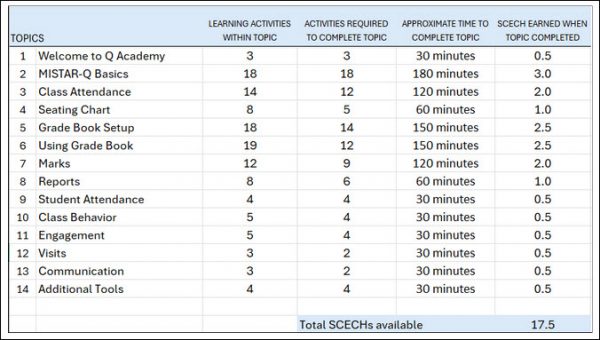
You may earn between 1.0 and 17.5 SCECHs, depending on which topics you complete by the end of this 12-week course. At least two topics must be completed to qualify for SCECHs.

Schech graphic

Should I register for MISTAR-Q Academy if I previously participated in Monarch?
If you completed Monarch, you completed all content in MISTAR-Q Academy.  If you participated in Monarch but did not complete the course, you are welcome to register, but your progress will not transfer from the old Monarch course.

Register here  – after registering, watch for emails by Jan 19 with details on how to get started. Registration fee is FREE / $0.

Please note, this course is offered twice (fall and spring) each academic year.

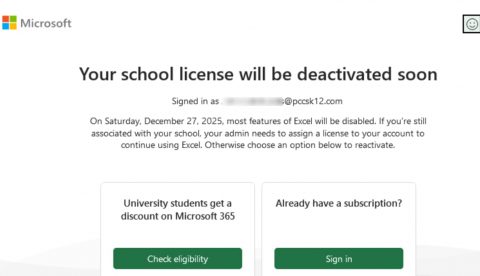
Microsoft Office 365 desktop apps access truly ending for any still using those apps

Microsoft expiry notice

Last year we posted news that Microsoft had notified our district that they would be ending our access to Microsoft Office 365 desktops apps when they retired our licensing program (Office 365 A1 Plus) on August 1, 2024. Their announcement impacted all school districts with the same licensing.  While they stated that after August 1st, 2024, anyone that had downloaded and installed Office 365 versions of Word, Excel, and PowerPoint would find those programs no longer work, some staff found that they actually could still use them AND only now, more than a year later, are encountering notice that their access to the apps are definitely going away later this month. Microsoft has revoked our A1 Plus licenses within our system, prompting those notices.

So fortunately, some users enjoyed a bonus grace period of better than a year, but from our department’s perspective, regrettably, that is coming to an end. As we shared in our other blog post, here are some options for impacted staff:

  1. Use the Google Workspace for Apps (Recommended). As a Google Workshop for Education district, it is strongly recommended that staff use Google Docs, Sheets, Slides, etc. All of these apps (and more) are available through Google Drive.
  2. You can still use Microsoft Office 365 online since that licensing remains. Browse to portal.office.com and sign in using your email address and network (not Google) password. All files created using the desktop apps can be open and edited within the online suite.
  3. Use a free office suite alternative, such as Libre Office, which is available in the Company Portal for those that want to download and have installed a desktop office suite. Libre Office is highly compatible with Microsoft Office documents. It can open and edit all of the Microsoft Office file formats, as well as save in those same file formats. See this video guidance for how to set it up to natively load and save in Office formats.
  4. Departments/schools interested in purchasing licensing for Office 2024 for one or more of their staff can submit a service request so our department can work with the requester on their purchase and our installation. Current REMC pricing for Office Standard runs through June 2027.

How to find and remove Google results with your personal info

Results about you Google

Google offers a way to search and learn if your personal information is available via their search engine. When you use “Results about you,” you can find out if your personal contact info, like your home address, phone number, or email address shows up in search results. If it does, they offer a way for you to possibly remove it.

See this help article for more about this service and tips on how best to use it.

Alternatively, If you want to request removal of a result for someone else, or if you don’t want to log in, you can use the detailed removal request form instead.

Last month a staff member was texted on their personal cell phone from someone pretending to be a district administrator. The bad actor is believed to have located their cell phone number via a Google search. Reducing your personal details available online can reduce the chances that a bad actor tries to leverage them for ill intent.

Happy Thanksgiving and a Housekeeping Request

Happy Thanksgiving

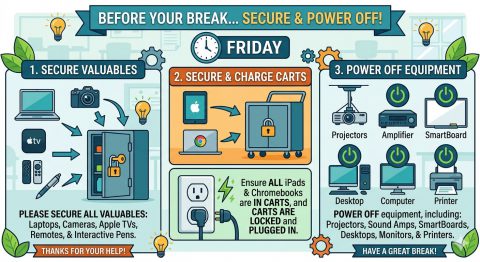
We hope you enjoy your Thanksgiving break! Before you leave Tuesday afternoon…

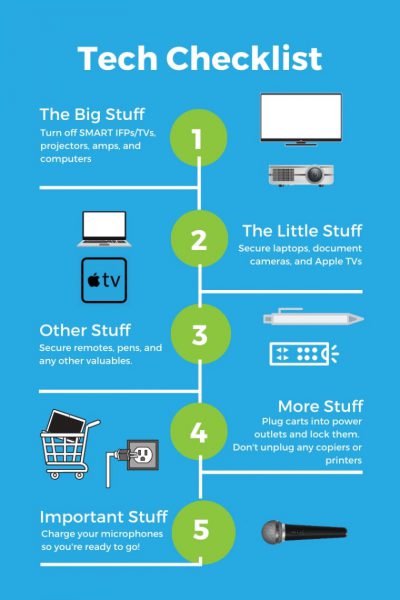
WOULD YOU PLEASE SECURE ALL VALUABLES in the classrooms and office spaces you inhabit. This includes laptops, document cameras, Apple TVs, remotes, and interactive pens.

Further, if it is equipment you handle, would you please make sure all iPads and Chromebooks are in their carts and those CARTS ARE LOCKED and plugged in before leaving.

Finally, would you please also POWER OFF any of the following equipment, if it is equipment you handle:

  • projectors
  • sound amps
  • SmartBoards
  • desktop computers
  • monitors
  • printers

THANK YOU for your cooperation.

Tech housekeeping

How staff change their network password

change password

IMPORTANT: Before changing your network password, staff should remove the PCCSK12-Staff Wi-Fi network from all personal devices (for elaboration, see details at bottom). Failure to do so could lock your account. After changing your password, you can re-add devices with your new password.

Option 1 (before your building date) – you must be signed into a district Windows desktop or laptop to do this

  • Press CTRL + ALT + DEL 
  • Click on Change a password
  • change password box
  • Enter your current computer password in the Old Password field
  • Type in your New Password (see New Password Policy at end of the document)
  • Type it again to Confirm Password
  • Press the Enter key to continue
  • dialog box
  • Option 2 (On your building’s enforcement date or after, a prompt will appear if your password is not in compliance)
    • Reboot a district Windows computer by pressing the Windows key on the keyboard
    • Then click on the Power icon in the lower right corner of the pop up window
    • restart dialog box
    • Click on Restart
    • After the reboot, login with your computer user name and computer password
    • You will be prompted to change it
    • Enter your current computer password in the Old Password field
    • Type in your New password (see New Password Policy at end of the document)
    • Type it again again to Confirm Password
    • Press the Enter key to continue
    • password dialog box
    • Notes:

      New Password Policy:

      • Minimum 15 characters.
      • Complexity is optional (no mandated uppercase, lowercase, numbers, or symbols).
      • No forced expiration: Passwords only change if compromise is suspected.
      • Suggestion: Use a passphrase; combine unrelated words for easy recall [e.g, ocean-sun-grape (Do not use this password)].

      PERSONAL DEVICES guidance to remove the PCCSK12-Staff Wi-Fi network

      MOBILE PHONE: On a cell phone – Go to your phone’s Wi-Fi settings, find the PCCSK12-Staff network, tap the “Forget” ,”Forget This Network” or trashcan option. If you don’t see it immediately, look for an advanced option or a three-dots menu. The exact steps and menu names can vary slightly between Android and iPhone, but generally involve going to Settings > Wi-Fi and then accessing the settings for the specific network, in this case, the staff network, so to remove it, temporarily from your phone. 

      After your password has been changed, you can again discover and connect to that network, and will then input the updated password. See http://links.pccsk12.com/staffwirelessinstructions

      APPLE MAC: To forget the PCCSK12 Staff Wi-Fi network on a Macbook, go to System Settings (or System Preferences on older macOS) > Wi-Fi. For macOS Ventura or later, click Details next to the network and select Forget This Network, or click the three-dots icon next to this network and choose Forget This Network. 

      After your password has been changed, you can again discover and connect to that network, and will then input the updated password. See http://links.pccsk12.com/staffwirelessinstructions

      CHROMEBOOK To forget a Wi-Fi network on a personal Chromebook, go to Settings > Network > Wi-Fi > Known networks. Find the PCCSK12-Staff network, click the three dots (More options) next to it, and select Forget. 

      After your password has been changed, you can again discover and connect to that network, and will then input the updated password. See http://links.pccsk12.com/staffwirelessinstructions

      WINDOWS 11: To forget the PCCSK12-STaff Wi-Fi network in Windows 11 either go through the Quick Settings menu by right-clicking the network and selecting “Forget,” or through the Settings app by going to Network & internet > Wi-Fi > Manage known networks and clicking “Forget” next to the network. 

      After your password has been changed, you can again discover and connect to that network, and will then input the updated password. See http://links.pccsk12.com/staffwirelessinstructions

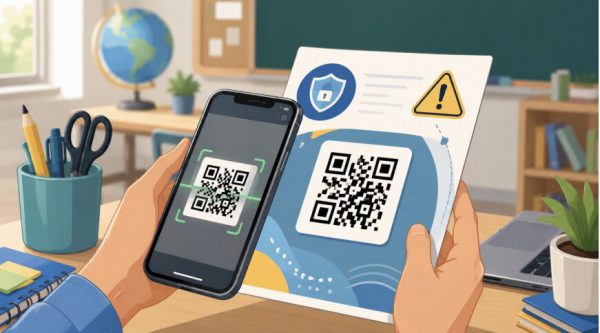
A Cybersecurity Month Reminder: Stay Vigilant Against Phishing Attacks

As we continue our efforts to maintain a secure digital environment for our school community, the Technology team would like to provide a timely reminder about phishing awareness and the tools at our disposal.


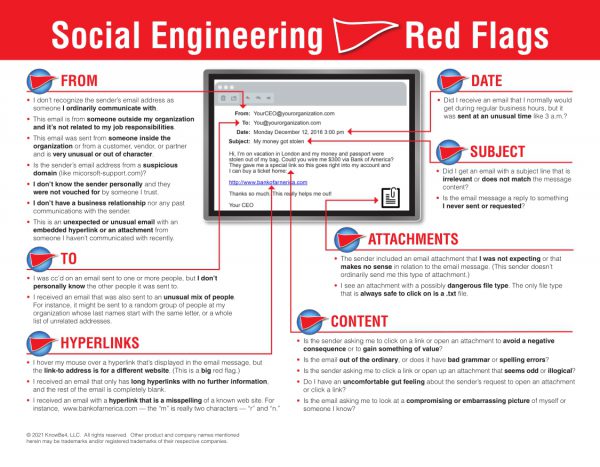
First, we want to extend our thanks to everyone for your engagement with our KnowBe4 cybersecurity initiatives. Since we began our simulated phishing campaigns, we have seen a positive increase in awareness across our staff. However, the landscape of cyber threats is constantly evolving. Attackers are using more sophisticated and personalized techniques, making it more critical than ever to remain skeptical and vigilant. To put this in perspective, the latest Verizon Data Breach Investigations Report found that 74% of all breaches involved the human element, such as falling for a phishing scam. This highlights that our awareness is truly the first and most effective line of defense.


Our simulated phishing campaigns will continue periodically throughout the school year. Remember, these are not tests designed to catch you out, but rather practical exercises to help us all stay sharp. Think of them as fire drills for our digital safety. The goal remains purely educational: to provide a safe space to practice and hone our skills in identifying and reporting suspicious emails. As before, there will be no disciplinary repercussions for interacting with these simulations. Our focus is on continuous learning and improvement for everyone.


One of the most powerful tools at your disposal is the Phish Alert button. Your active use of this button is essential to our defense strategy. When you report a suspicious email using this feature, you are not just deleting it from your inbox; you are immediately notifying our technology team. This allows us to analyze the threat, block the sender, and remove similar malicious emails from other inboxes across the district, protecting your colleagues before they might even see the threat.


As a quick refresher, the Phish Alert button is located in the Gmail side panel on the right side of your email window, alongside your Calendar and Tasks icons.

Phish alert screenshot

We want to address a common question: “What if I’m not sure if an email is a phishing attempt?” The answer is simple: When in doubt, report it! It is always better to be overly cautious. There is no penalty for reporting a legitimate email by mistake. Your vigilance helps create a safer environment for our entire school community, including our students’ data and our shared resources.


Your continued partnership in this effort is crucial. By staying alert and using the tools provided, you are an active participant in safeguarding our institution. Together, we can build a resilient “human firewall” against cyber threats.


Should you have any questions or need a refresher on identifying phishing attempts, please do not hesitate to reach out to our IT department by submitting a service request.


Thank you for your ongoing commitment to keeping our community secure.

MasterLibrary Schedules (MLS) Facility Integration

EMS replaced with ML Schedules

As previously shared, the district has a new facilities management system called MasterLibrary Schedules (MLS), which now serves as our replacement for the Virtual Event Management System (EMS)

For those that need to reserve district spaces, please read through this post and familiarize yourself with the basic instructions for logging into, and learning how to use, this new system.

MasterLibrary is currently used within the district for building maintenance and IT requests via ML Workorders. Staff will use their same district Google login credentials when accessing MLS.

MasterLibrary Schedules (MLS) direct link (https://mi50.mlschedules.com)

Once logged in, the facility request procedures are similar to our previous system (EMS). However, to further assist you with navigating the new platform, here are a few resources that you may find helpful:

  1. Basic User Quick Start Guide
  2. Getting Started Guide – Training Videos, Glossary, FAQ
  3. Make a Request (Video)
  4. Using the Calendar
  5. Additional Reports

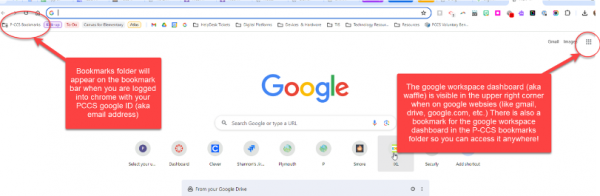
To reiterate, effectively immediately, Virtual EMS has been phased out and all staff members must make facility usage requests in MLS by going directly to https://mi50.mlschedules.com (feel free to bookmark), click Log in with Google and sign in with their current district Google account creds. MasterSchedules

Once your ML Schedules account is created, you can immediately start making facility reservation requests. Booking confirmations or other communications regarding your request(s) will automatically be sent to your district email. 

Additional resources:

All requests for building space will need to be made ONLINE directly through MLS and will no longer be processed manually by Facilities. 


– For questions or issues relating to booking FACILITIES, please email Marie Rogers.

For AUDITORIUM / THEATER usage, please email Paul Bird.

– For any technical issues with MLS, please follow the instructions above for reaching out to IT.


Please note, we will be offering several virtual drop-in sessions via Google Meet throughout the month of August for interested staff. Revisit this page as it will be updated with those dates and times. 

Thank you in advance for your patience as the district rolls out this new facilities reservation platform. With hundreds of requests coming through on a daily basis, your booking requests and any questions that you may have about MLS will be addressed as quickly as possible. 

Master Library Schedules

EMS replaced with ML Schedules

Beginning this week, facility use requests will now be made via a new platform called MasterLibrary Schedules. This is replacing EMS. Like Maintenance and Tech Request, this will be housed through MasterLibrary. Access will be available via the following link: https://mi50.mlschedules.com/

Staff will receive an activation email when their account is ready. Roll-out will begin with building administrators this week. Access for teachers and other staff will continue to roll out by the end of June. Please keep an eye out for an email from Master Library Schedules

From there the procedures are similar to our previous system. However, to further assist you with navigating the new platform, here are a few resources that you may find helpful prior to its launch:

  1. Basic User Quick Start Guide
  2. Getting Started Guide – Training Videos, Glossary, FAQ
  3. Make a Request (Video)
  4. Using the Calendar
  5. Additional Reports

To reiterate, staff members should make facility usage requests by browsing to https://mi50.mlschedules.com after receiving the welcome email from MasterLibrary Schedules. 

More resources:

Windows 11 Update will occur on district Dell laptops in the coming weeks and months

Windows 11 for Dell laptops

Hello P-CCS Staff.

We are currently in the process of updating our fleet of laptops to Windows 11 and over the summer we will be enforcing an update for all Dell laptops to the Windows 11 operating system. The Windows 10 operating system will no longer receive updates after October 2025, so it is imperative that we start rolling out these updates to prevent any disruption in the fall. We have already pushed the update to the entire tech team and two schools without any issues.

The policy will download and stage the update in the background without requiring user interaction. Once the update is fully staged, the laptop will require a restart to complete the installation. The policy is configured so that laptops will only restart automatically outside of school hours (5 PM – 7 AM) to ensure that classroom instruction is not disrupted.

If the laptop is turned off outside of these hours, you may receive a message informing you that a restart is required to finish the installation. We urge you to complete this step at your earliest convenience, keeping in mind that the update process could take up to 30 minutes.

Once again, this update policy will only apply to the Dell laptops. For the time being, we are delaying updating the HP laptops.

If you have any questions or run into any problems during the upgrade, please don’t hesitate to contact technology by submitting a service request.

Thank you,