
Every teacher has experienced the “back row” challenge. No matter how vibrant your SMART Board is, distance and room layout can create barriers. A student in the far corner might struggle with small text, while another may find it difficult to follow complex diagrams through the glare of afternoon sun.
SMART Mirror Broadcasting is the professional solution to this common classroom hurdle. By streaming your display’s content directly to student devices, you aren’t just sharing a screen; you are bringing the front of the room to every single desk. This ensures that every learner, regardless of where they sit, has a personalized, high-clarity view of the lesson.
See the directions below for how to get started. There’s also a video.
1. Enable the Feature (One-Time Setup)
- Open the SMART Mirror app (purple icon).
- Tap Settings (Gear icon) in the bottom left.
- Under Session Management, toggle Moderator Mode to On. ***This prevents students from displaying their screen without permission.
- Under Display Options, toggle Broadcast to participants to On.
2. Start Your Broadcast
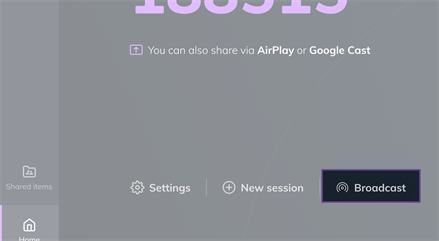
- On the home screen, tap the Broadcast icon (labeled “Screen Share” on iQ 3 displays).
- Choose your destination: Participants, Displays, or Both.
- Tap Start broadcasting.
- Status Check: The icon will turn yellow when the live stream is active.
3. How Students Join
No apps required! Students simply:
- Go to smartmirror.link.
- Enter the Session ID and their name.
- Click Connect → View broadcast. Students can now zoom in on their own screens to see your live annotations up close.
4. Ending the Session
- Teachers: Tap Stop broadcasting in the Broadcast menu.
- Students: Click Leave in the top right of their browser.
Submit a tech ticket if you have any issues or questions.