

One of the benefits to utilizing a Learning Management System (LMS) like Canvas or Seesaw is the ability for families to become observers and be involved in the digital aspect of the classroom.
Canvas Observer Accounts

Canvas Observer Accounts are created from the main contacts listed in MiStar. In order for observers to access the account and follow their student(s), they need to change their password.
- Open a browser and navigate to https://pccsk12.instructure.com (opens in new tab).
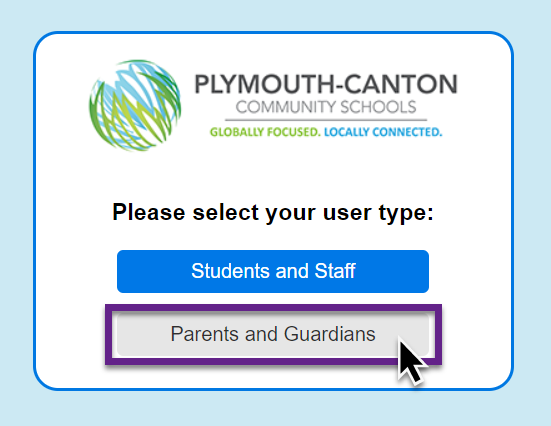
- Click Parents and Guardians
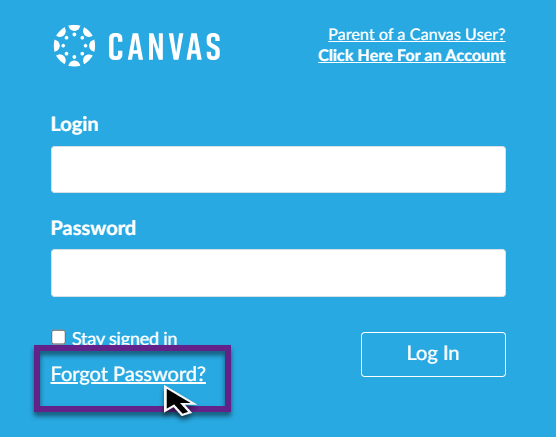
- Click Forgot Password.
- Do this even if you haven’t already set up an account
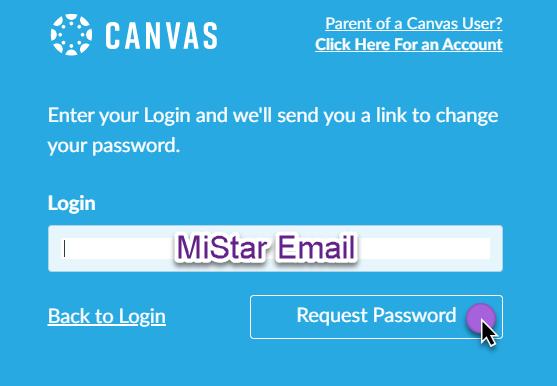
- Enter the email address that you use for MiStar Parent Connection.
- Click Request Password.
- This will send a password reset link to your email (check your spam). Follow the instructions in that email to change your password and sign in.
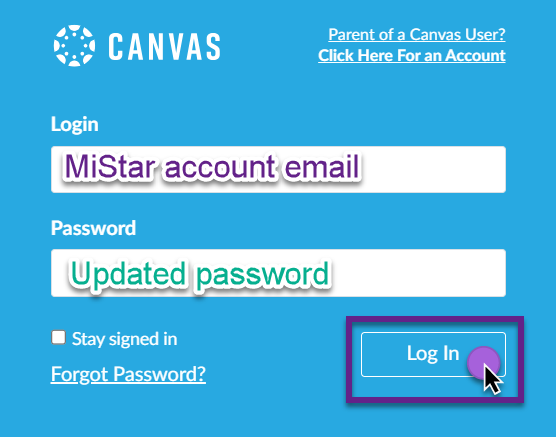
- Go back to https://pccsk12.instructure.com (opens in new tab), enter your email address in the Login box and enter your updated password to sign in.
Canvas Observer Account Setup Guide (Google Doc, opens in new tab)
Seesaw Family Accounts

Families connect to their child’s Seesaw journal to participate in their student’s learning, see student work, and celebrate progress. They can connect to their child’s journal on the web (app.seesaw.me, opens in new tab) or by downloading the Seesaw App, available on iOS and Android. When families connect to their child’s journal, they can only see their individual child’s work, or group projects that their child is tagged in.
- Tap on the wrench to open Class Settings.
- Enable family access (if not already turned on) by sliding the toggle ON. (Family access is automatically set to OFF).
- Go into the class you’d like to connect families to and tap + Families.
Teachers can generate an Invite Link to connect families to their students’ Seesaw journals.
- Tap on the wrench to open Class Settings.
- Select Invite Families. Tap Share an Invite Link.
- Copy and paste the URL that generates into your communication with family members.
- This invite link will work for every student in the Seesaw Class. When pasting the link into their browser window, all the family member has to do is choose their student’s name from the list to connect to the journal.
- Once the family member chooses which student they’re trying to connect to and creates a Seesaw account, the teacher will receive a notification letting them know that they have a family invite pending.