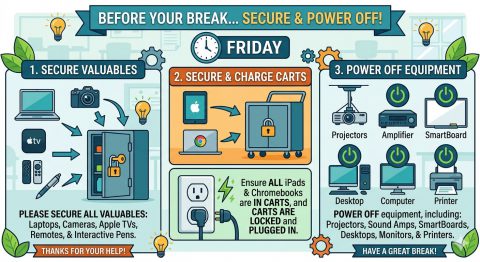
On FRIDAY before you leave for a well-deserved break…
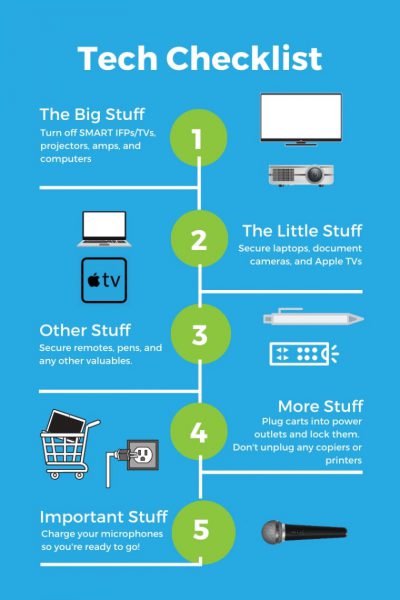
PLEASE SECURE ALL VALUABLES in the classrooms and office spaces you inhabit. This includes laptops, document cameras, Apple TVs, remotes, and interactive pens.
Further, would you please make sure all iPads and Chromebooks are in their carts and those CARTS ARE LOCKED and plugged in before leaving.
Finally, would you please also POWER OFF any of the following equipment, if it is equipment you handle:
- projectors
- sound amps
- SmartBoards
- desktop computers
- monitors
- printers
THANK YOU for your cooperation.