Microsoft Office 365 desktop apps access truly ending for any still using those apps

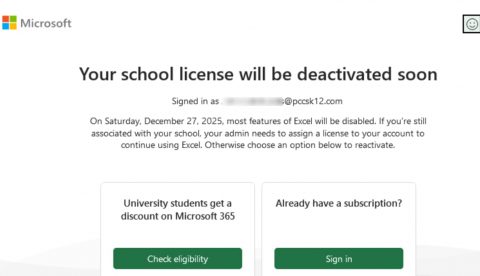
Microsoft expiry notice

Last year we posted news that Microsoft had notified our district that they would be ending our access to Microsoft Office 365 desktops apps when they retired our licensing program (Office 365 A1 Plus) on August 1, 2024. Their announcement impacted all school districts with the same licensing.  While they stated that after August 1st, 2024, anyone that had downloaded and installed Office 365 versions of Word, Excel, and PowerPoint would find those programs no longer work, some staff found that they actually could still use them AND only now, more than a year later, are encountering notice that their access to the apps are definitely going away later this month. Microsoft has revoked our A1 Plus licenses within our system, prompting those notices.

So fortunately, some users enjoyed a bonus grace period of better than a year, but from our department’s perspective, regrettably, that is coming to an end. As we shared in our other blog post, here are some options for impacted staff:

  1. Use the Google Workspace for Apps (Recommended). As a Google Workshop for Education district, it is strongly recommended that staff use Google Docs, Sheets, Slides, etc. All of these apps (and more) are available through Google Drive.
  2. You can still use Microsoft Office 365 online since that licensing remains. Browse to portal.office.com and sign in using your email address and network (not Google) password. All files created using the desktop apps can be open and edited within the online suite.
  3. Use a free office suite alternative, such as Libre Office, which is available in the Company Portal for those that want to download and have installed a desktop office suite. Libre Office is highly compatible with Microsoft Office documents. It can open and edit all of the Microsoft Office file formats, as well as save in those same file formats. See this video guidance for how to set it up to natively load and save in Office formats.
  4. Departments/schools interested in purchasing licensing for Office 2024 for one or more of their staff can submit a service request so our department can work with the requester on their purchase and our installation. Current REMC pricing for Office Standard runs through June 2027.
Enjoy Your Break and Secure your Technology

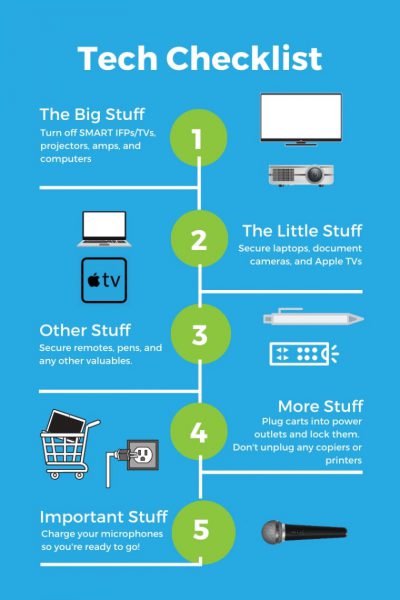
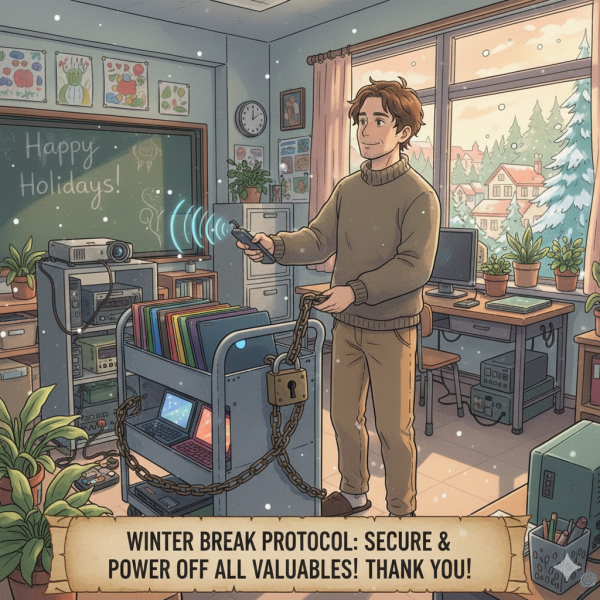
Decorative image reminding people to secure their tech.

We hope you enjoy your Winter break! Before you leave Friday afternoon…

WOULD YOU PLEASE SECURE ALL VALUABLES in the classrooms and office spaces you inhabit. This includes laptops, document cameras, Apple TVs, remotes, and interactive pens.

Further, if it is equipment you handle, would you please make sure all iPads and Chromebooks are in their carts and those CARTS ARE LOCKED and plugged in before leaving.

Finally, would you please also POWER OFF any of the following equipment, if it is equipment you handle:

  • projectors
  • sound amps
  • SmartBoards
  • desktop computers
  • monitors
  • printers

THANK YOU for your cooperation.

Tech housekeeping

Introducing: “Two Truths & AI” for Your Classroom

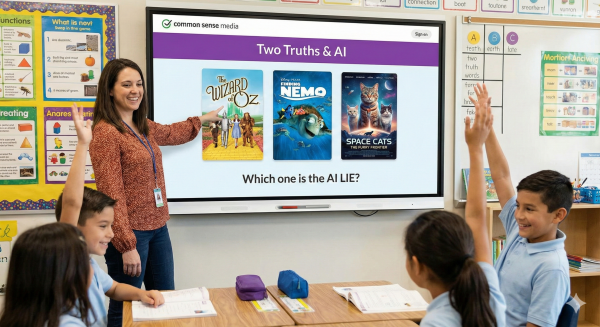
Students engaged in playing Two Truths and AI.
Generated with Gemini AI.

As AI-generated content becomes increasingly realistic, teaching students to distinguish between what is authentic and what is synthetic has never been more critical. But how do we make digital literacy engaging without it feeling like a lecture?

Enter Two Truths & AI, a new interactive game from Common Sense Media designed to help K–12 students build their “AI detective” skills.

What is it?

Based on the classic party game “Two Truths and a Lie,” this digital interactive challenges students to look at three movie posters. Two are real, and one has been generated or altered by AI. The goal? Spot the fake.

Why Teachers Will Love It

  • Builds Critical Thinking: Students aren’t just guessing; they are learning to analyze visual clues like text errors, odd details, and lighting inconsistencies.
  • Flexible Implementation: It works perfectly as a whole-class activity on a smart board to spark discussion, or as an independent activity on 1:1 devices.
  • Grade-Appropriate Content: The game features two distinct bands to ensure content is suitable:
    • Grades K–6: Uses G and PG movie posters.
    • Grades 7–12: Uses G, PG, and PG-13 posters.
  • Zero Setup Required: There are no logins required and no personal data is collected. You can open the browser and start playing immediately.

Ways to Use It in Your Classroom

  1. The Ultimate Bellringer: Use the “Timed” mode to wake up the class with a quick, 60-second high-energy challenge.
  2. Deep Dive Discussions: Use the “Untimed” mode to slow down and have students debate why they think a specific image is AI-generated before revealing the answer.
  3. Curriculum Connection: Use the game as a hook before diving into Common Sense Media’s Digital Literacy lessons, such as:
    • Fact or Fiction? (Kindergarten)
    • Perfectly Altered (Grade 3)
    • Evaluating Information Online (Grade 7)
    • Deepfakes & Consent (Grade 8)

Ready to Play?

This is a fun, low-stakes way to introduce complex concepts about media authenticity. We highly recommend playing a round yourself first to get the hang of spotting those tricky AI artifacts!

Encourage your students to test their skills (and stump their parents!) by playing at home, too.

📢 Important Smartboard Update: Daily Logouts/Board Resets Now Active

We are sending out this important notice regarding a recent fix to the configuration of staff Smartboards across the district.

What is Changing?

We have corrected an error that prevented Smartboards from performing their required nightly reset and logout.

Effective Monday December 8, your Smartboard will perform a nightly reset and logout procedure.

What This Means for You

  • You will be logged out daily: When you arrive in the morning, the board will not be logged into your profile.

  • Daily Login Required: You will need to log in to the Smartboard each day to access your files, settings, and district resources.

What Your Board Should Look Like in the Morning

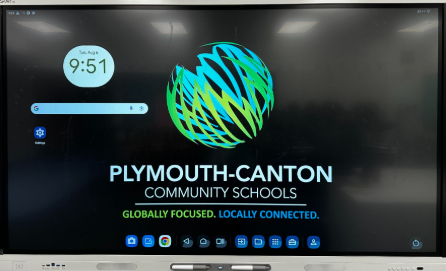
When you turn on your board in the morning, you should see the standard black screen with the PCCS logo.

  • There should be no whiteboard files visible on the screen.

  • The board should not show you as logged in.

⚠️ Critical Note on Saving Your Work

This mandatory daily reset process means that nothing you do on the Smartboard will be saved permanently unless you are logged into your individual profile.

  • To ensure your work, files, and settings are preserved, please make sure you log in when you start using the Smartboard each day.

Need Help?

If your board remains logged in, or you do not see the black screen with the PCCS logo when you arrive in the morning, please submit a tech request immediately so the issue can be addressed.

Thank you for your understanding as we implement this necessary security and system stability update.

P-CCS Video Toolkit: Distraction-Free Video Power

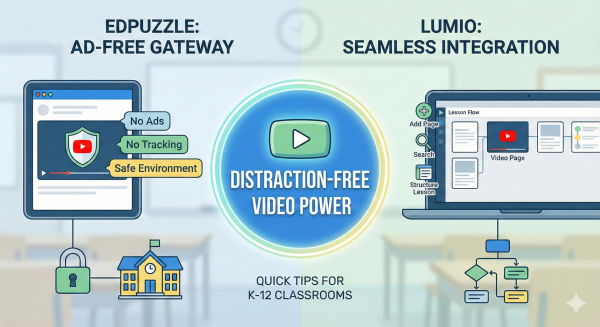
Edpuzzle and Lumio are options for distraction free videos

As previously announced, Canvas Studio has been discontinued. We know that one feature many people enjoyed about this tool was an ad-free experience for videos. Fortunately, two platforms the distict has—Edpuzzle and Lumio—offer solutions to make integrating YouTube videos seamless and safe.

Edpuzzle: The Ad-Free Gateway

If your primary goal is to ensure students watch content without interruptions, Edpuzzle is your key. Edpuzzle has partnered with YouTube to integrate the YouTube Player for Education.

This means when students view videos through Edpuzzle, they access YouTube content that is free of ads, tracking, and distractions.

This partnership commitment allows teachers and families to have peace of mind knowing students are engaging with videos in the safest possible environment.

As discussed in previous blog posts, Edpuzzle also allows you to integrate questions to check for understanding while students watch the video.

Lumio: Seamless Video Integration

Using Lumio also helps ensure that videos play without ads. It also has the added bonus of helping combine multiple lesson components into one place (so you don’t have to navigate to several different platforms). Lumio allows you to pull in Google Slides, PDFs, YouTube videos, and more into one “deck.”

To bring a video directly into your Lumio lesson structure:

  1. Start a new lesson by clicking New, or open an existing lesson in Editing mode and click the add page icon.
  2. In the Add page window, select YouTube.
  3. In the Add Video window, you can either type a search term or paste a video’s URL, and then click Search.
  4. Once you select the desired video from the results, click Add to import it onto a new page. You can then give the resource a title before continuing to add more pages or clicking Finish Editing.

Learn more about YouTube videos in Lumio. 

Bonus

We know a lot of teachers like to put on winter scenes with calming music to create a welcoming, classroom atmosphere. These are great, but the ads can get overwhelming and annoying!

Here’s a winter jazz scene in Lumio.

A coffee shop scene with smooth piano jazz music and a calming 5 minute timer with ocean waves in Edpuzzle.